Instant Access
If you have permission to create Instant Access entries for temporary users, this tab will appear in your workspace.
The Instant Access tab allows you to create temporary, workspace-only users for quick collaboration without requiring full account registration or email.
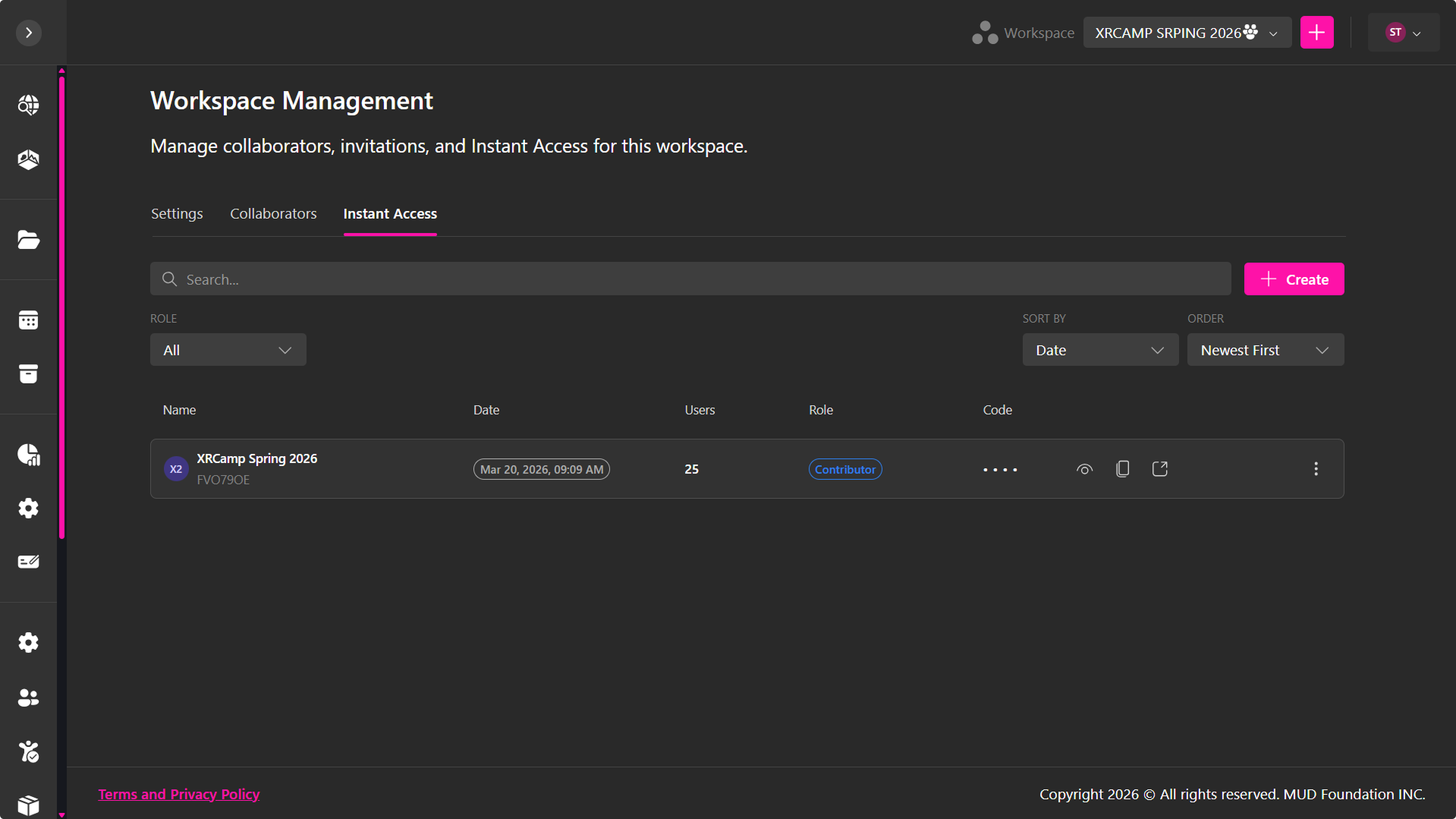
With Instant Access, you can:
- Generate a unique access URL tied to the workspace
- Allow users to create temporary accounts using:
- A display name
- A personal access code
- Enable users to immediately join and collaborate
Creating an Instant Access Link
The Instant Access link creates a dedicated entry point where users can join your workspace using an instant account.
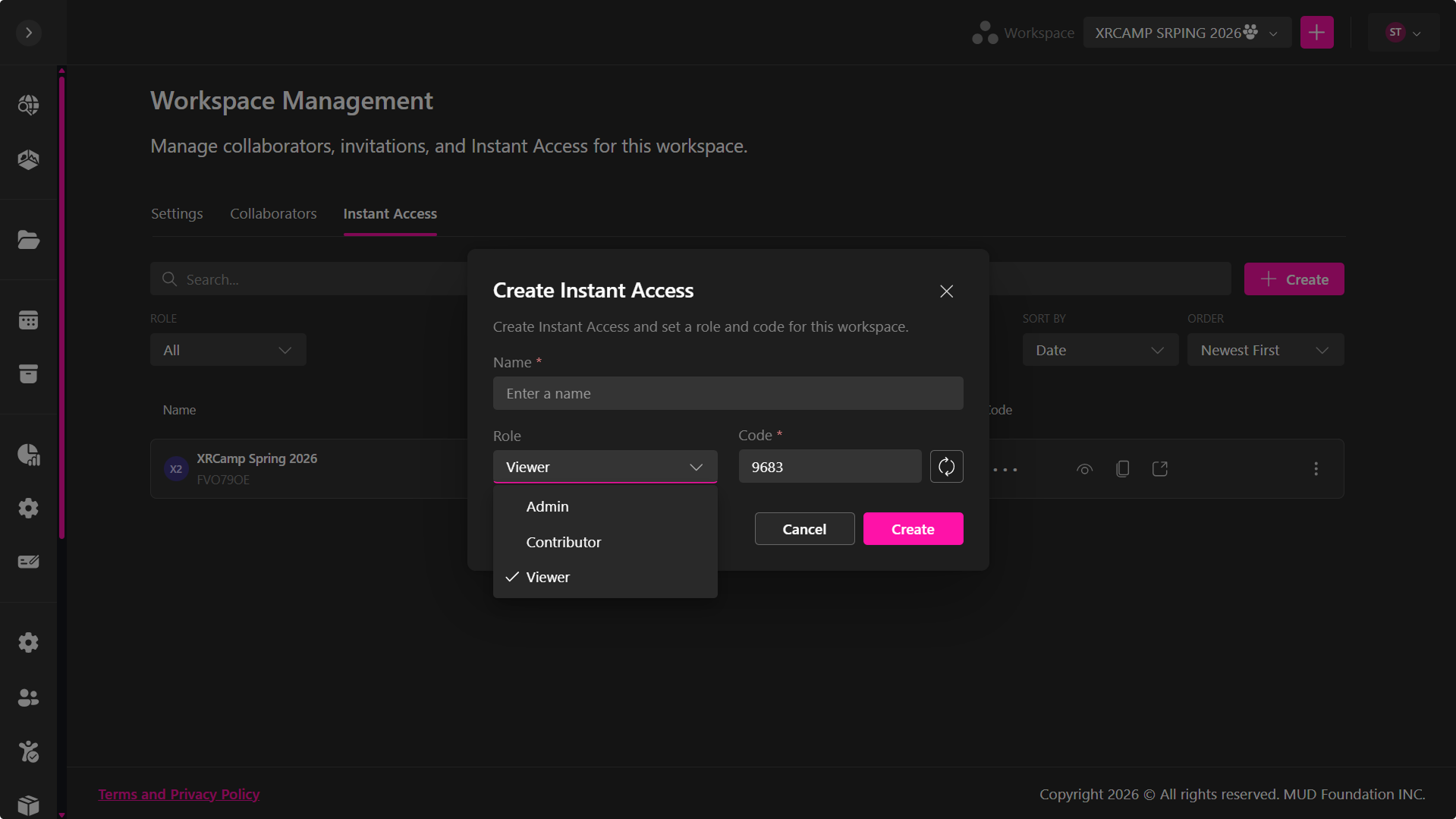
To create a new Instant Access:
- Click + Create
- Enter a name
- Select a workspace permission:
- Viewer
- Contributor
- Admin
- Set an access code:
- Enter your own, or generate a random one
- Click Create
Sharing and Viewing Instant Access Details
Once created:
- A unique access link is generated
- The generated access code is available for admins to view or copy
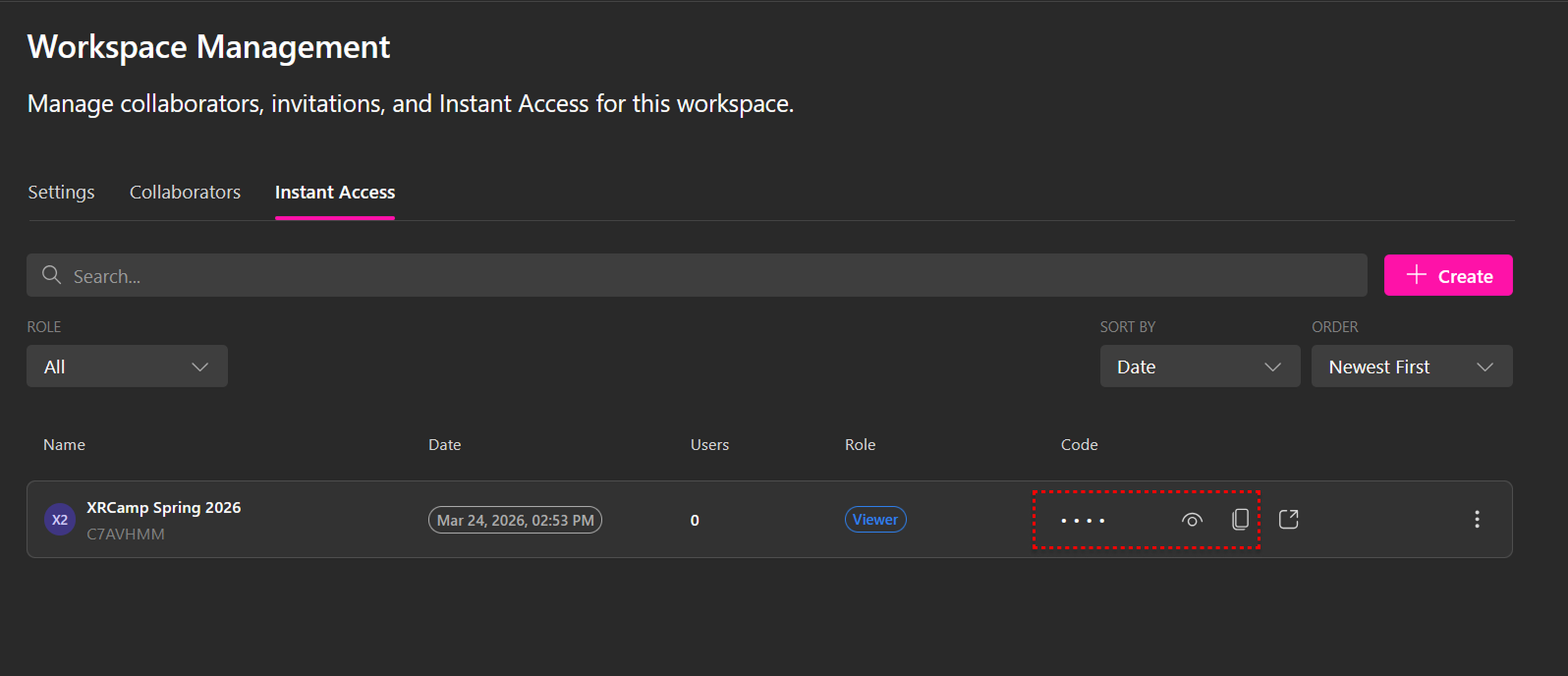
- You need to share the link and code with users
- Use the share icon to copy the link or view a QR code
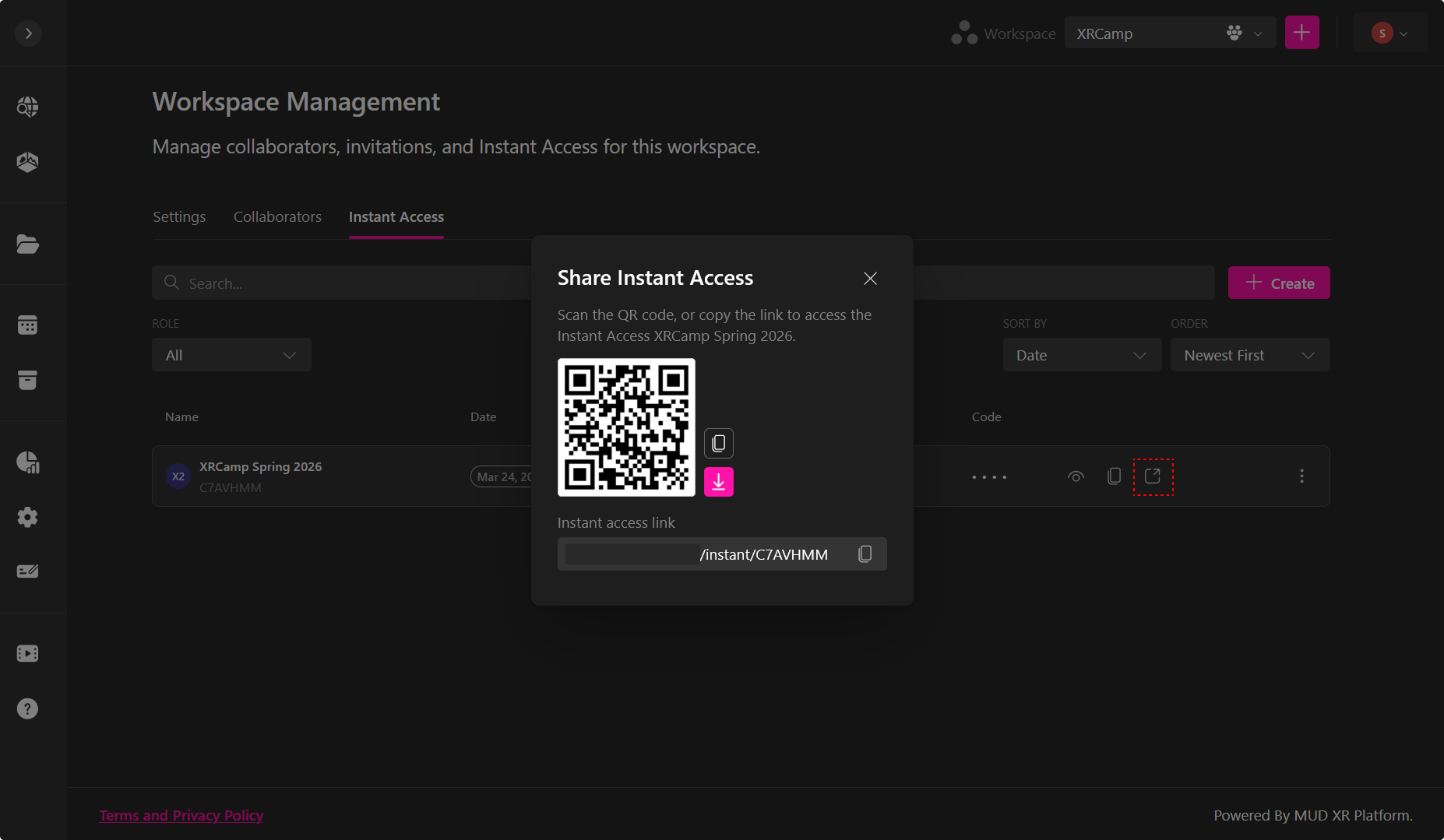
All users will join with the assigned role.
💡 Create multiple links if you need different roles.
Creating an Account with Instant Access
Instant Access creates a dedicated entry point where users enter the access code defined during setup. When they open the shared link, they will land on a similar page:
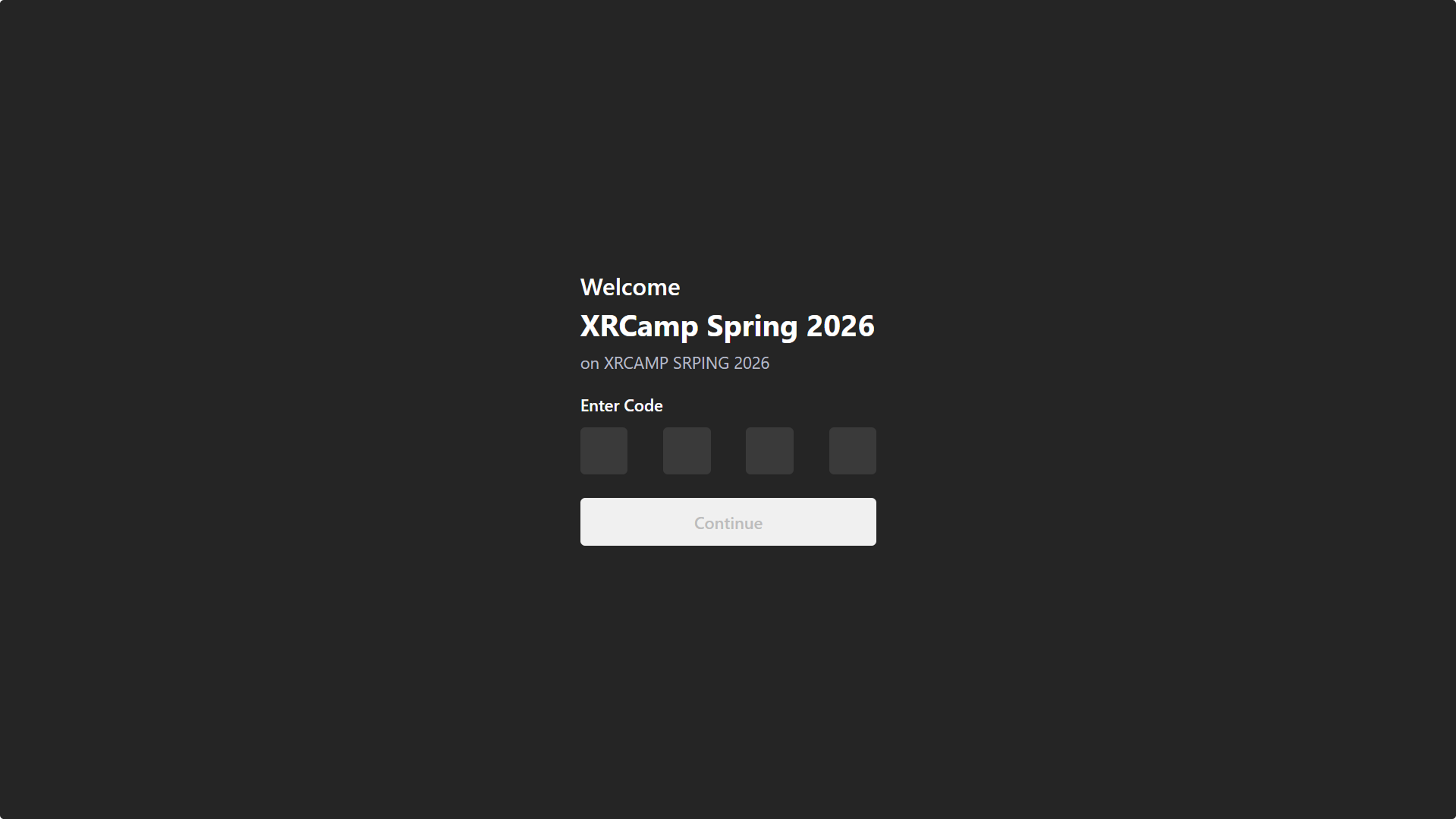
To create an account:
-
The user opens the link and enters the access code
-
The user logs in or creates an account by entering a:
- Name
- Password
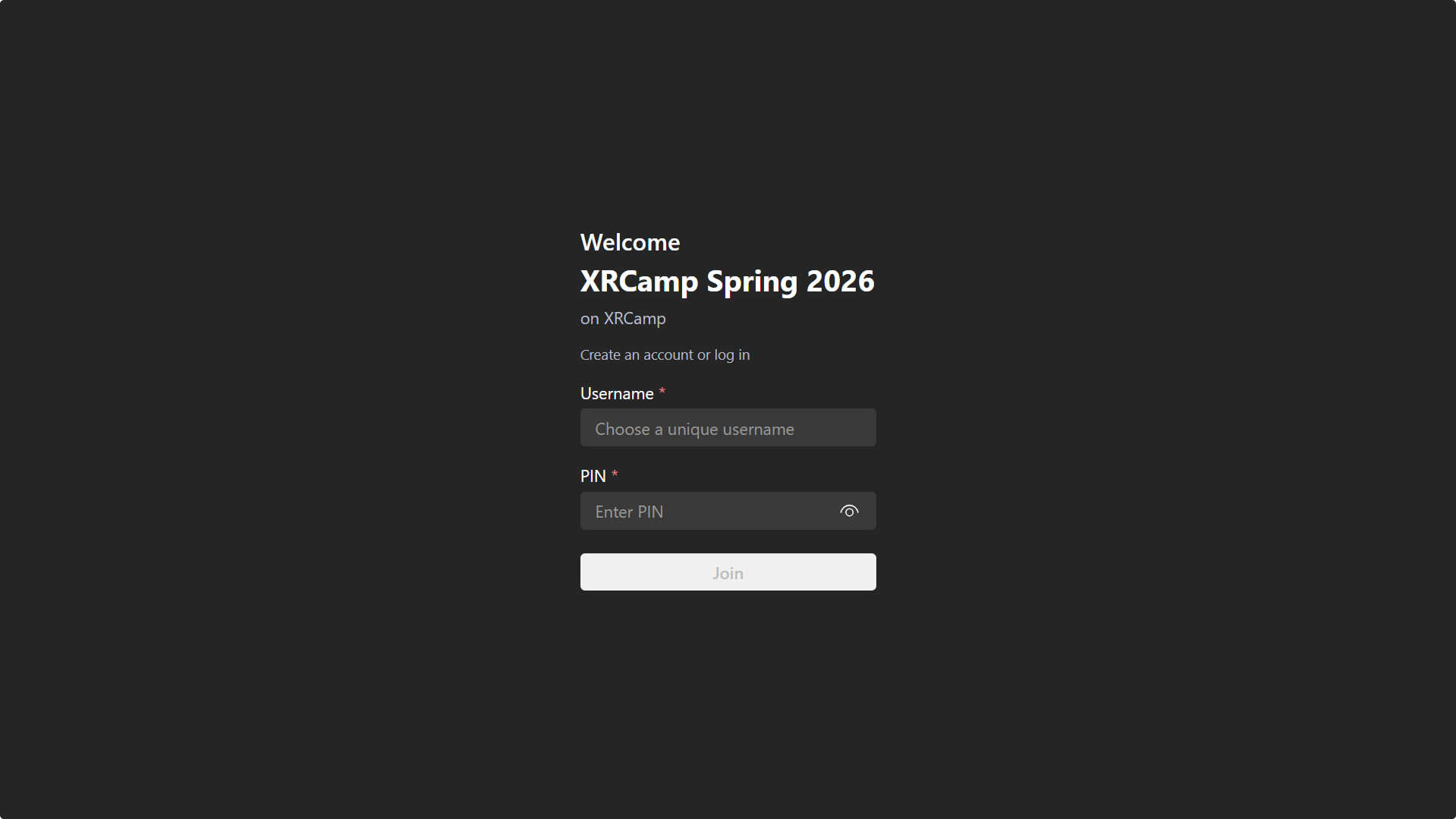
- Click Join
After joining:
- User gains workspace access
- Permissions match the assigned role
- User can update their name
The user needs to save their:
- User name
- Password
Managing an Instant Access Entry
As an admin in the workspace, you have options to manage your instant access link:
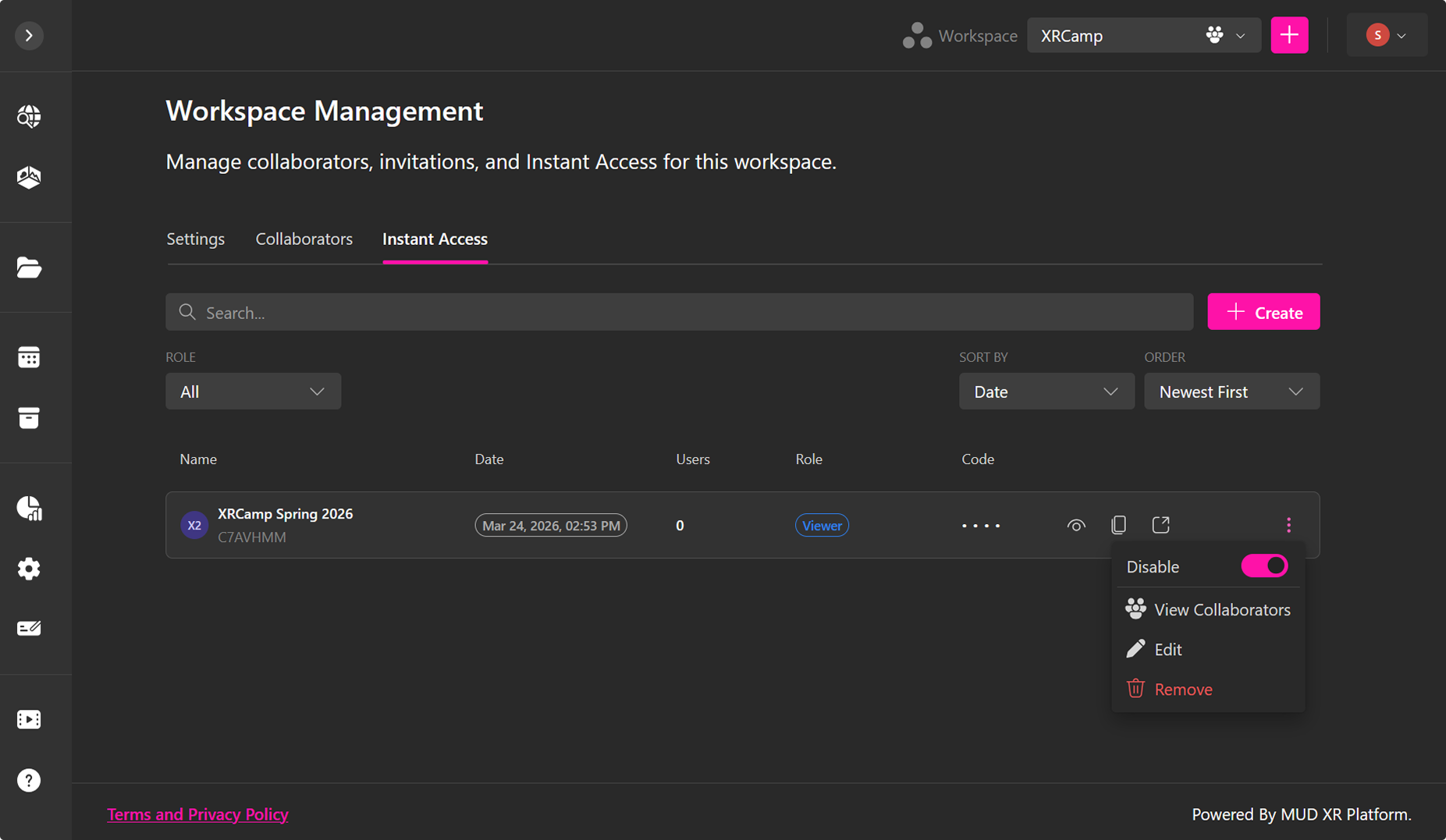
Each entry includes an Actions menu (⋯):
Disable / Enable
- Toggles access for collaborators
When disabled:
- New users cannot join
- Existing users lose access immediately until the instant access link is enabled again
View Collaborators
You can view all the users who joined your workspace through this access link
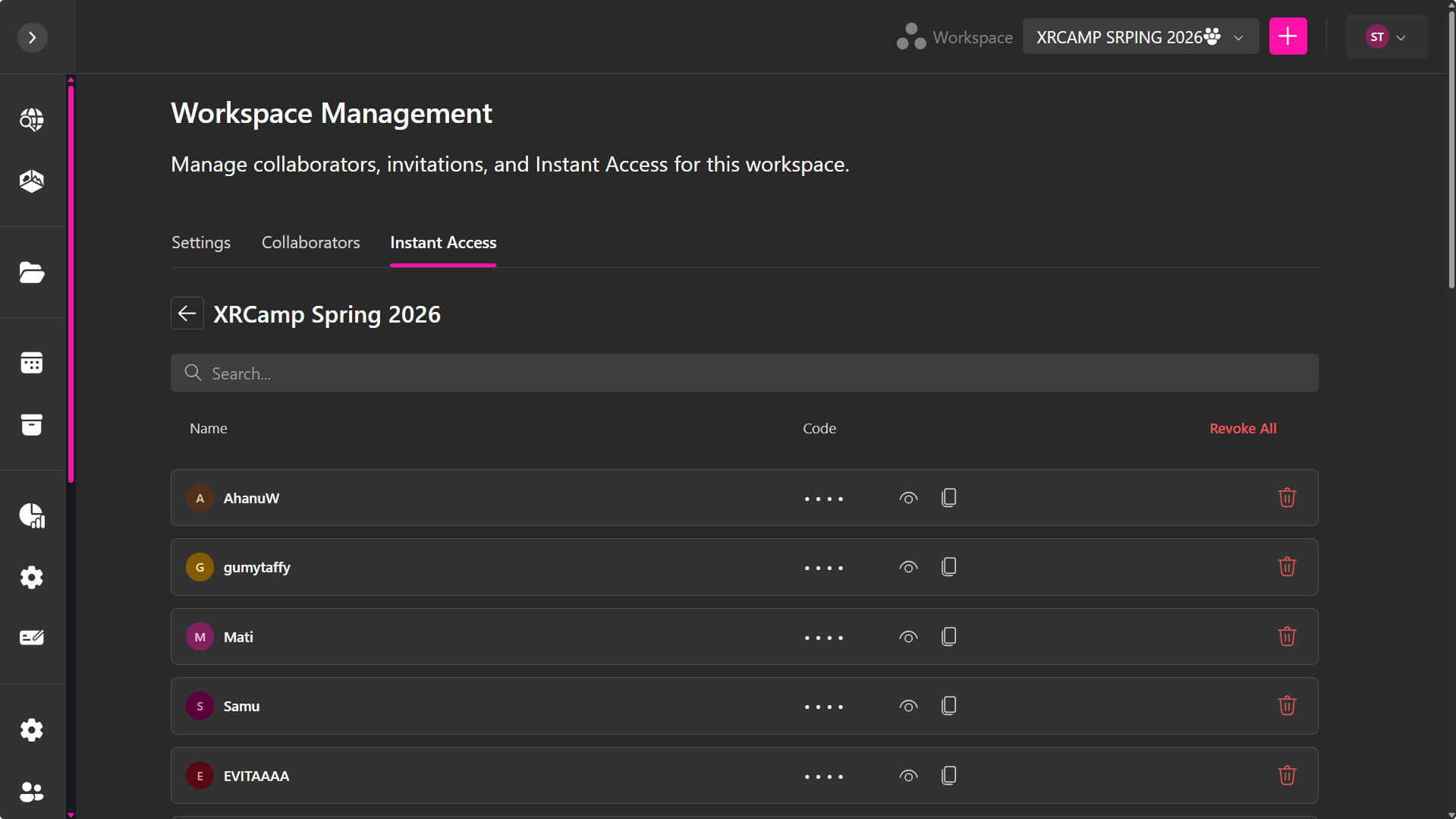
You can:
- View their names
- View their codes
- Copy their codes
- Remove users
Revoke Individual Access
- Click the trash icon to remove an specific user
Result:
- Immediate loss of access
- Removes all user connections and access to assets and projects they were associated with
- Irreversible
Revoke All Access
- Click the Revoke All option to remove all users from this access
To confirm:
- Type the Instant Access name
Result:
- All users lose access
- Removes all users connections and access to assets and projects they were associated with
- Irreversible
Disabling, removing, or revoking access takes effect immediately.
Access Code Management
You can view all user names and access codes created for your Instant Access link
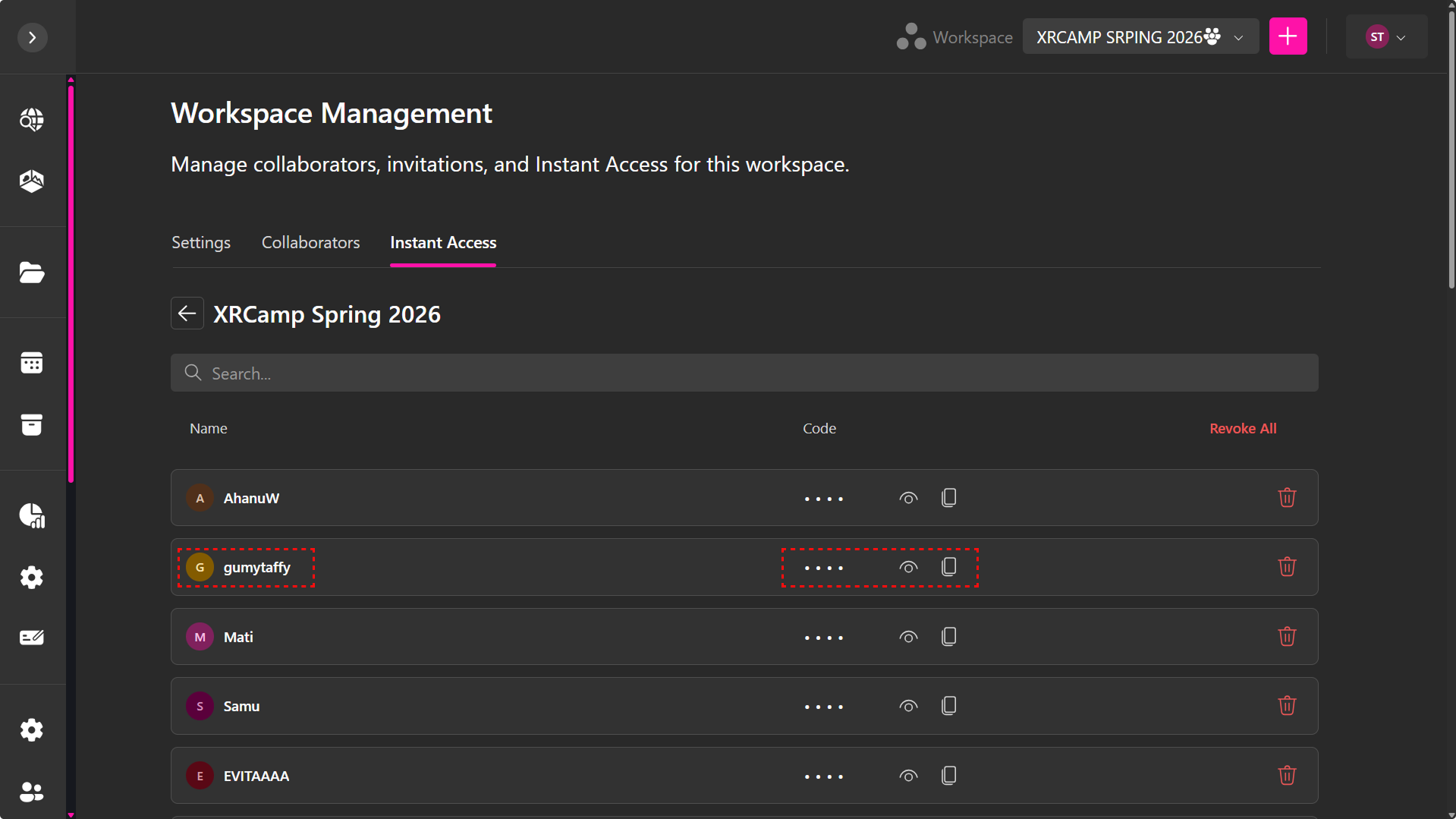
For each user you can:
- View or hide code
- Copy code
This ensures that if a user forgets or loses access, you can still view their account details and access code. This is especially useful when working with students.